 OpenLogi
Remap buttons
Map supported mouse controls to actions, gestures, and Back or Forward wheel-hold behavior.
Use a mouse's Buttons tab to change a supported control. Each control uses one action, a five-direction gesture map, or a Back / Forward wheel-hold mode.
From the GUI
Select a mouse, then open Buttons. Click its hotspot dot or label card to open the control inspector.
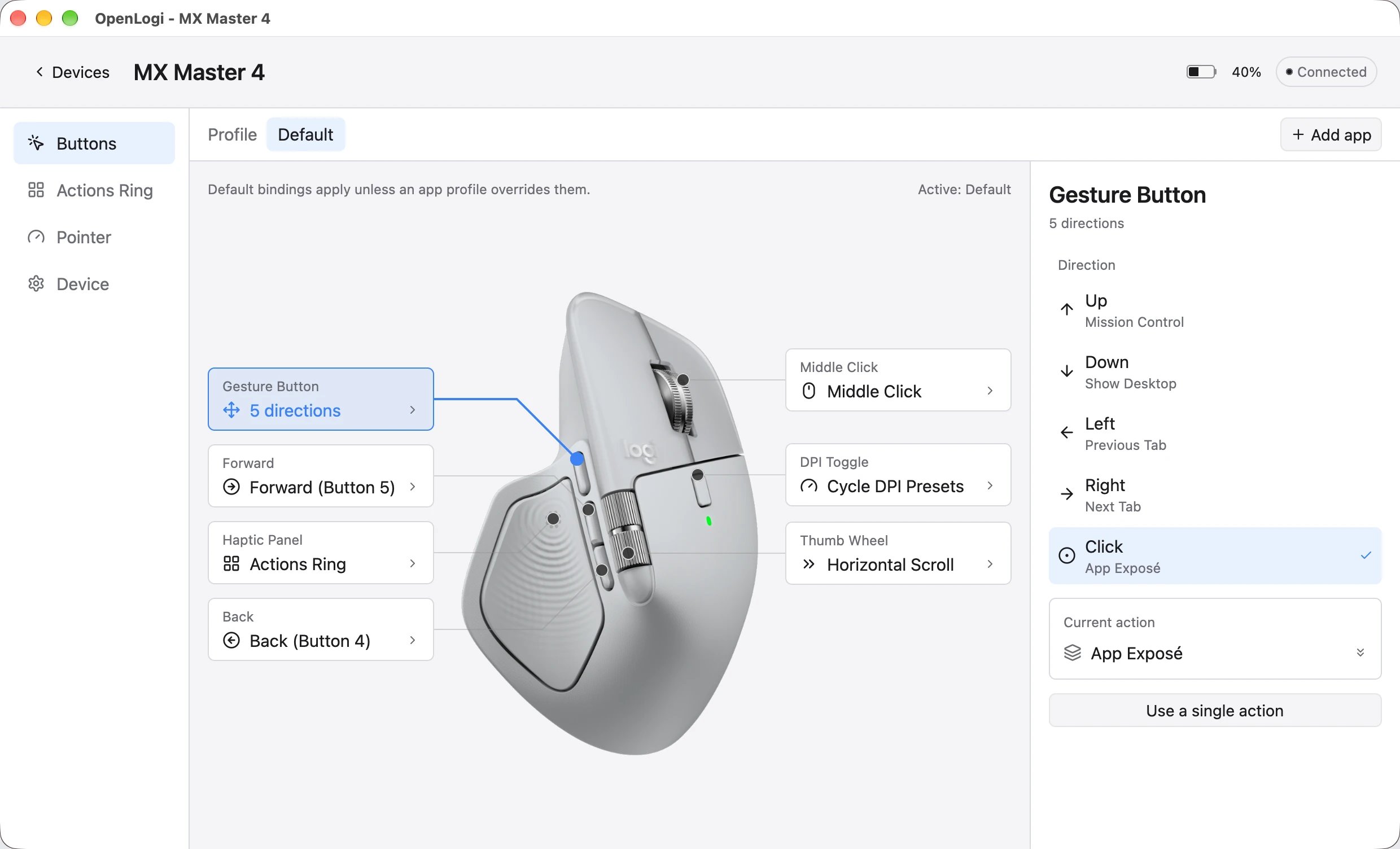
The label card shows the effective binding. It shows Unbound when no binding exists.
- Action picker — Search the standard action list. Do Nothing captures the input without synthesizing an operating-system event.
- Custom shortcut — Choose Tap or Hold, type a chord such as
Cmd+Shift+PorPageUp, then click Add. Tap writesCustomShortcut; Hold writesHoldShortcut. - Open application or folder — Enter an application, folder, path, or URL. The picker can author this action directly.
- Default profile — This profile changes device-wide bindings. An app profile has one action per button; Use the default profile removes that button's override.
The mouse picker does not author TapKeyHoldingModifiers, TypeText, RunAppleScript, RunShellCommand, or Workflow. Add those actions in TOML.
Use Super in a custom shortcut when you need the platform logo modifier. It is Command on macOS, and the Super or Windows key on Linux and Windows.
A custom shortcut can be a single key with no modifier. Besides letters, digits, punctuation, F1 to F20, Enter, Escape, Backspace, Tab, Space, and the arrow keys, it accepts the editing keys Insert (Ins), Delete (Del), Home, End, PageUp (PgUp), and PageDown (PgDn). Names are case-insensitive. On macOS, Insert presses the Help key.
Actions by platform
The same action name can use a different native path on each platform.
| Action | macOS | Linux | Windows |
|---|---|---|---|
MissionControl | Sends a Dock notification. | GNOME opens Activities. KDE uses KWin Overview. Hyprland skips this action. | Sends Win+Tab. |
AppExpose | Sends a Dock notification. | KDE uses KWin ExposeClass. GNOME and Hyprland skip this action. | Sends Win+Tab. |
ShowDesktop | Sends a Dock notification. | GNOME sends Super+D. KDE uses KWin. Hyprland skips this action. | Sends Win+D. |
LaunchpadShow | Sends a Dock notification. | GNOME sends Super+A. Hyprland uses its native helper or remap. Other sessions skip it. | Sends the Windows key. |
PreviousDesktop / NextDesktop | Sends a Dock desktop swipe. | KDE uses KWin D-Bus. Other sessions use their shortcut path. Hyprland uses its native helper or remap. | Sends Win+Ctrl+Left / Right. |
Screenshot | Takes a native full-screen capture. | Sends Print Screen. | Sends Win+PrtScn. |
CaptureRegion | Sends Cmd+Shift+Ctrl+4. | Sends the desktop's region-capture Print Screen chord. | Sends Win+Shift+S. |
On Linux, a missing native equivalent is skipped. OpenLogi does not substitute an action with different scope.
Gesture mode
Choose Use gestures for a supported control in the Default profile. The inspector then has Up, Down, Left, Right, and Click actions.
Middle Click, Back, and Forward can enter gesture mode. DPI Toggle can enter it after the mouse reports raw-XY support.
A dedicated Gesture Button and the MX Master 4 Haptic Panel can also use gestures. The M720 Triathlon multiplatform thumb button is recognised as a Gesture Button. An MX Ergo precision-mode slot maps to DpiToggle.
A held Gesture Button can dispatch chained swipes. Keep holding the button, then make another swipe to dispatch another direction.
Hold to scroll sideways is available for Back and Forward when the mouse reports raw-wheel support. While you hold the button, the main wheel scrolls left and right.
A press without wheel movement still runs the button's click action. Wheel hold and gesture mode are mutually exclusive for that button.
See Hold to scroll sideways for the scrolling behavior.
Capture paths
OpenLogi captures ordinary Middle Click, Back, and Forward input through the operating-system hook. It captures supported device controls through HID++ 0x1b04 reprogControlsV4 diversion.
The HID++ path covers the dedicated Gesture Button, the Haptic Panel, and supported DPI / ModeShift controls. It also enables HID++ side-button gestures on Windows when the device reports the required control data.
The agent rebuilds the per-device capture plan after a binding changes. Controls not required by an effective binding or built-in gesture keep their firmware behavior.
In the config
Bindings use a physical device key. This example shows a modifier-held tap, a wheel hold, a short / long pair, and a gesture map:
[devices."unit:6be9d300".bindings]
Back = { TapKeyHoldingModifiers = "Alt+Tab" }
Forward = { click = "BrowserForward", wheel = "HorizontalScroll" }
MiddleClick = { short = "Copy", long = "Paste" }

[devices."unit:6be9d300".bindings.GestureButton]
Up = "MissionControl"
Down = "AppExpose"
Left = "PreviousDesktop"
Right = "NextDesktop"
Click = "ShowActionsRing"
CustomShortcut taps the complete chord immediately. HoldShortcut holds modifiers and the ordinary key until the physical button releases.
TapKeyHoldingModifiers taps the ordinary key once, then holds the modifiers until release. This can keep an application switcher open after it receives Alt+Tab.
Short / long pairs are TOML-only. Releasing before 500 ms runs short; reaching 500 ms runs long once.
See Configuration for every action and binding form.
Per-app bindings
Per-app bindings use one action per button. They cannot store gesture directions, short / long pairs, or wheel-hold behavior.
Use an app override to replace a global action in one app. Clear that override to inherit the Default profile again.
See Per-app profiles for targeting and overlay rules.
Status: macOS, Linux, and Windows. Device-side capture uses 0x1b04 specialKeysMSEButtons.