 OpenLogi
Flow
Move a Logitech mouse and keyboard to the computer beside this one by moving the pointer off a screen edge.
Flow lets computers that run OpenLogi share one Logitech mouse and keyboard. Move the pointer off a screen edge, and the devices switch to the computer on that side.
Flow does not send your input over the network. Each device is paired with each computer on its own Easy-Switch channel. When the pointer crosses an edge, OpenLogi tells the devices to change channel. The network only coordinates the computers.
Requirements
- OpenLogi on every computer. Flow pairs only with OpenLogi. It does not work with Logi Options+ Flow.
- A shared network. Computers on the same network find each other. A computer on a VPN, VLAN, or overlay network can be added by address.
- Easy-Switch devices. Pair each device with every computer, each on a different channel. A device has at most three channels. Switching uses HID++
0x1814changeHost. A HID++ 1.0 device cannot switch. - The input hook. Flow sees the pointer reach an edge through the OS mouse hook. Leave
capture_mouse_eventson. On macOS, the agent needs Accessibility access. Without the hook, the computer cannot send devices away, but it can still receive them. - Network ports. Flow uses UDP port
42424. Pairing uses UDP port42425while the pairing dialog is open. Computers find each other with mDNS.
Flow runs on macOS, Windows, and Linux. On Linux, a computer can send devices away only in an X11 session. A Wayland session can still receive devices.
Open the Flow window
Click Flow in the Home header. The button's dot is green when the pointer can cross to another computer and amber when something blocks it. Its tooltip shows the status.
| Status | Meaning |
|---|---|
| Off | Enable Flow is off. |
| No other computers | No computer is paired. |
| Can't switch yet | Computers are paired, but none can receive the devices now. |
| Ready · N reachable | The pointer can cross to N computers. |
Turn on Enable Flow in the window's toolbar. Flow is off by default.
Pair a computer
Open pairing on both computers
Open the Flow window on both computers, and click Add Computer… on each.
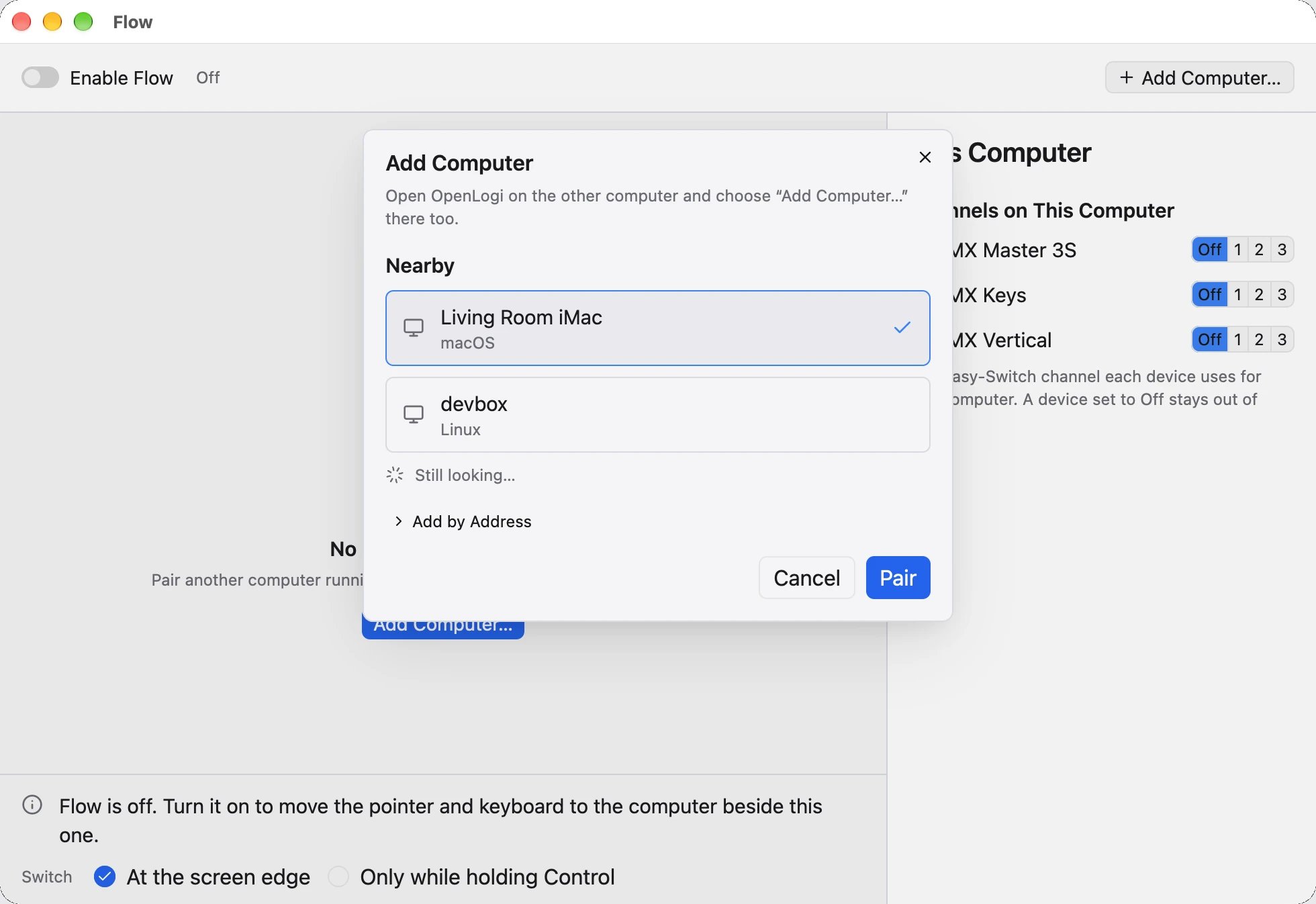
Pick the other computer
Nearby lists the computers on this network that have pairing open. Select one, then click Pair.
For a computer this network can't find, click Add by Address. Enter a host name or IP address, such as 192.168.1.20 or devbox.tailnet.ts.net. After pairing, OpenLogi saves that host as the computer's address.
Check the code
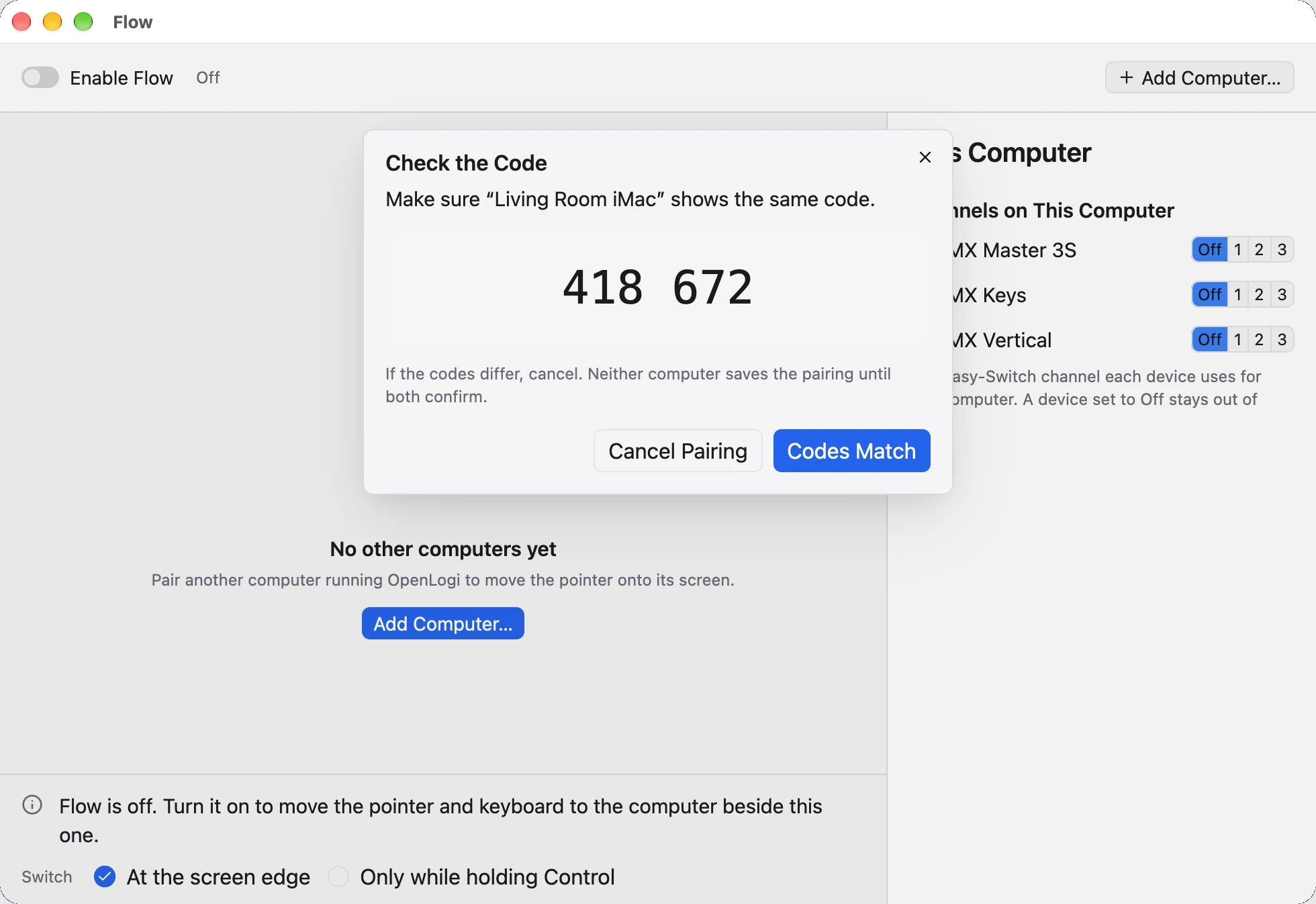
Both computers show the same six-digit code. Compare them, then click Codes Match on both computers.
If the codes differ, click Cancel Pairing. Neither computer saves the pairing until both users confirm. The code is valid for two minutes.
Each computer saves the other under its host name. The new computer has no screen edge yet.
Pairing stays open while the dialog is open. It stops after 10 minutes without a computer, or when the background service restarts.
| Situation | Message |
|---|---|
| The other user cancelled | Pairing was cancelled on “%{name}”. |
| The codes differ | “%{name}” reported that the codes differ. |
| Two minutes passed | The code expired before both computers confirmed it. |
| No computer answered | No computer answered. Check the address, and that OpenLogi is open on the other computer. |
| Incompatible versions | These versions of OpenLogi can't pair with each other. Update OpenLogi on both computers. |
Place the other computer
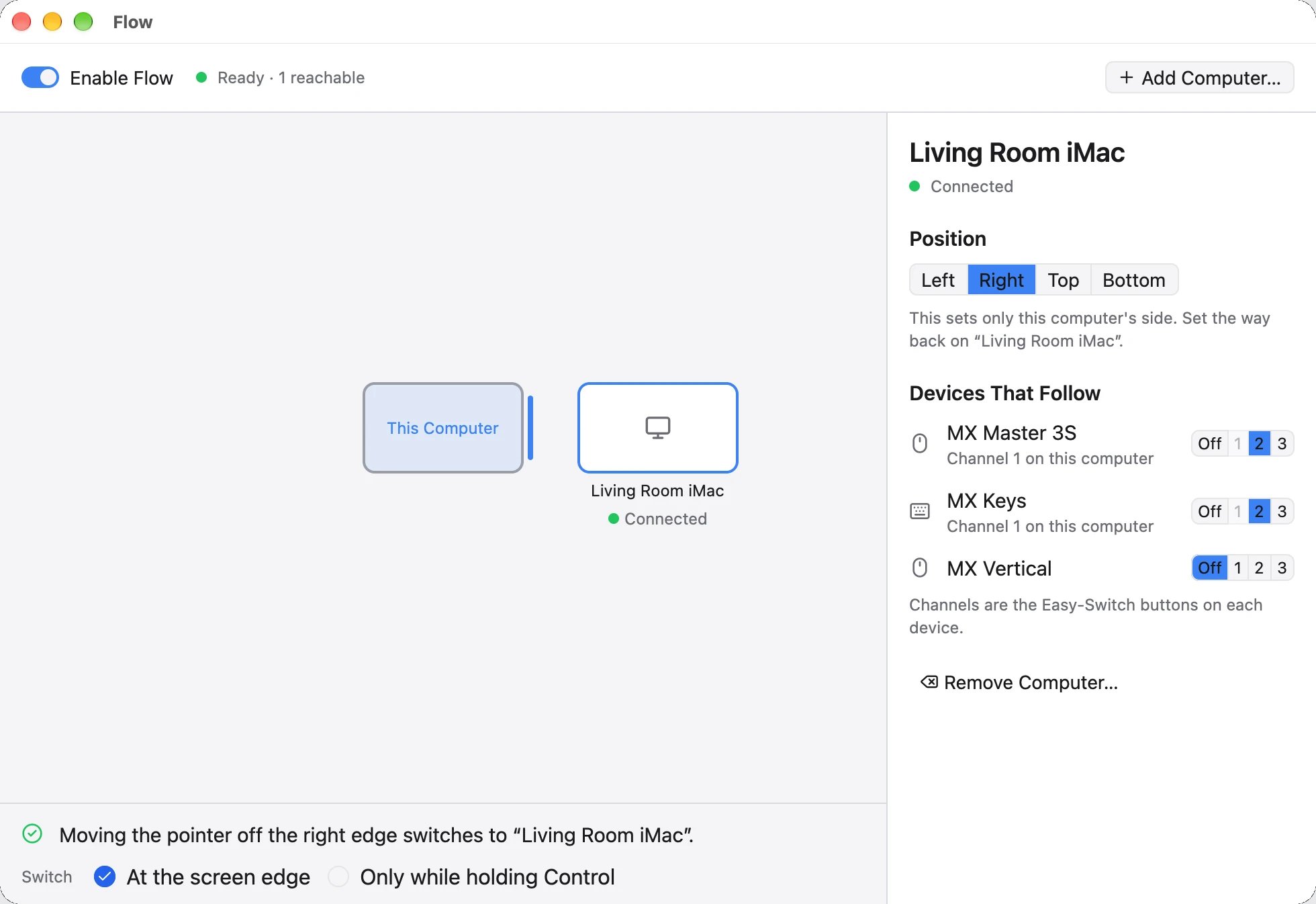
The arrangement shows this computer in the centre. A newly paired computer waits under Not placed.
Drag its tile to a side of this computer. You can also select it and use the arrow keys, or choose Left, Right, Top, or Bottom under Position.
A computer uses one side. Choosing a side that another computer uses swaps the two. If the moved computer had no side, the other one returns to Not placed.
Position sets only this computer's side. Set the way back on the other computer.
Choose the devices that follow
Select the other computer. Under Devices That Follow, choose the Easy-Switch channel each device uses for that computer, 1 through 3. Choose Off to keep a device here.
Select This Computer to see Channels on This Computer. This is the channel each device uses for this computer. A device set to Off here stays out of Flow.
When a device first follows a computer, OpenLogi fills in this computer's channel. It uses the channel the device is on now, or else the lowest free one. Check that guess. A channel that another computer uses cannot be chosen.
The list shows the mice, trackballs, touchpads, and keyboards this computer knows. A HID++ 1.0 device shows Can't switch computers.
Set up the devices on both computers. A computer accepts only the devices in its own Flow settings.
Link states
Each computer shows the state of its connection.
| State | Meaning |
|---|---|
| Connected | The connection is up, and the other computer answers. Its edge is active. |
| Unstable | The connection is open, but the other computer answers late. |
| Offline | There is no connection to the other computer. |
| Unknown | The background service has not reported the computer yet. |
Only an edge to a Connected computer switches the devices.
Under the arrangement, the summary says what each edge does, such as Moving the pointer off the right edge switches to “%{name}”. It also lists what blocks a computer:
| Message | Fix |
|---|---|
Choose which side of this computer “%{name}” is on. | Place the computer. |
Choose a channel on a device for “%{name}”. | Give at least one device a channel for it. |
“%{name}” is offline. | Open OpenLogi on that computer and check the network. |
%{device} can't switch computers. Set it to Off for “%{name}”. | Set that device to Off. While it is online, no device moves. |
None of the devices for “%{name}” is connected to this computer now. | Switch a device back to this computer. |
%{device} won't follow to “%{name}”. | Give that device a channel, or leave it here on purpose. |
Cross to another computer
Hold the pointer against the edge for a quarter of a second, or move it quickly into the edge.
Only an outer edge counts. An edge that touches another display of the same computer does not switch.
Use Switch to choose when crossing works:
- At the screen edge: every crossing switches.
- Only while holding Control: hold Control as you cross. This is the Control key on every platform, including macOS.
OpenLogi first checks that every following device can switch. If one cannot, no device moves, so a keyboard never stays behind its mouse. The devices then change channel, pointing devices first. The other computer places the pointer on its opposite edge, at the same relative position.
One switch runs at a time. After a switch, the edge reacts again only after the pointer leaves it.
Remove a computer
Select the computer, click Remove Computer…, then Remove. OpenLogi stops switching to it and forgets its key, its side, and its device channels. To use it again, pair it again.
The other computer keeps its own entry. Remove this computer there as well.
In the config
Flow settings live under [flow] in config.toml. Schema 11 added this section. A file without it loads with Flow off.
schema_version = 11

[flow]
enabled = true
require_modifier = false          # true: hold Control to cross

[[flow.peers]]
name = "work-laptop"
public_key = "ed25519:0f1e2d3c4b5a69780f1e2d3c4b5a69780f1e2d3c4b5a69780f1e2d3c4b5a6978"
addresses = ["work-laptop.tailnet.example", "10.0.0.7"]

[[flow.layout]]
edge = "right"                    # this computer's right edge
peer = "work-laptop"

[[flow.devices]]
key = "unit:0f1e2d3c"
peer_channels = { self = 0, "work-laptop" = 1 }| Key | Default | Meaning |
|---|---|---|
enabled | false | Turns Flow on. |
require_modifier | false | Requires Control while crossing an edge. |
peers[].name | required | The computer's name. Layout and device entries refer to it. |
peers[].public_key | required | The key pinned at pairing: ed25519: and 64 lowercase hex digits. |
peers[].addresses | empty | Host names or IP addresses to try when mDNS cannot reach the computer. A value without a port uses 42424. |
layout[].edge | required | left, right, top, or bottom. |
layout[].peer | required | The computer beyond that edge. |
devices[].key | required | The device's serial: or unit: identity key. A route key such as receiver:…:slot:… is rejected. |
devices[].peer_channels | required | Zero-based Easy-Switch channels: self for this computer, plus one entry per peer name. |
The window shows channels 1 through 3. The file stores them as 0 through 2.
The file fails to load when two peers share a name or key, an edge appears twice, or a layout or device entry names an unknown peer. It also fails when a device has no self channel or uses one channel twice. A peer name cannot be self, be empty, or have surrounding spaces.
The file holds only public keys. This computer's private key is flow-identity.pk8 in OpenLogi's data directory, not in config.toml.
Command line
openlogi diag host-switch moves one device to another Easy-Switch channel through the running agent:
openlogi diag host-switch --device "MX Master 3S" --host 1--host is zero-based. The command does not confirm that the device arrived. OpenLogi has no other Flow commands.
Limitations
- Flow moves devices only. It does not share the clipboard.
- A Linux Wayland session cannot send devices through an edge.
- Flow does not work with Logi Options+ on the other computer.
Status: macOS, Windows, and Linux. Requires HID++ 0x1814 changeHost on every following device.